
RVD.AI · Version 3.3.1
Berni proposes, you review, and your student reads what you told them.
With version 3.3, what the AI reads in a piece of work reaches the student only when you publish it. You close each review with a comment and a step for next time, and your student finds both together in My feedback. Their progress reads in words. And the school can appoint coordinators who support its teachers from a read-only space.
WHAT'S INCLUDED
The changes in this update.
Grading
Berni proposes a level and you confirm it
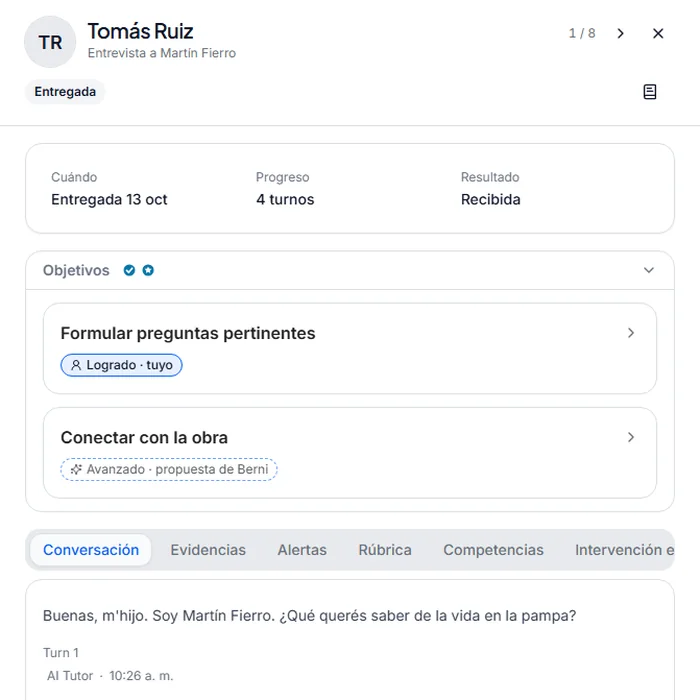
Each objective shows whose level it is: yours, or proposed by Berni.
When you open a student's work, each objective carries its level with a mark: Achieved · yours if you set it, Advanced · proposed by Berni while it is still the AI's reading. Before you publish, the summary tells you how many levels stay as Berni proposed them, because publishing confirms them too.
An objective the student never got to work on reads No evidence. If you close an attempt for Absence or because Time ran out, the student keeps the chance to try again.
In the Grading tab, each criterion says what it counts toward, and a Berni proposal counts only once you confirm it.
One level set by the teacher and one that is still Berni's proposal. Demo account. Grading
Closing a review: a comment and a step for next time
Closing the review is the panel's last step. There you see what the student will read, exactly as it will reach them: your comment, one concrete thing to do on the next similar task, and a line per objective with the parts of their work it rests on.
The step for next time is required, because it is what the student takes away. If you wrote a line for one level and then changed the level, the panel points it out before you publish.
You publish with the button or with Ctrl+Enter, get a receipt, and Next takes you to the following student. Once a day you get a reminder of the hand-ins still waiting for review.
What Tomás will read, before it is published. Demo account, Spanish interface. Feedback
The AI's reading waits for the teacher
Everything a student receives about a task reaches them through you.
Until you publish the review, the task shows as handed in and waiting for the teacher. The student does not see the level the AI proposed or a step it suggested.
Once you publish, they read your comment first, then For next time, and the criteria last. In My progress, the My feedback tab gathers what their teachers wrote, newest first.
After a conversation with Berni they also read How you got there: one line per objective about the path they took.
Published reviews, each with its step for next time. Demo account, Spanish interface. My progress
Competencies that read in words
The student sees each competency with a word: Well established, On the way or To reinforce. No 0 to 100 score appears on their screen.
A competency marked To reinforce carries the step for next time their teacher wrote, with a link to that review. The trend, Rising or Falling, appears once there are at least two pieces of work in the half; until then it reads No trend yet.
The school chooses the words it uses for its levels, from its settings. In primary school, a small face sits next to the word.
Each competency with its word, its trend and how many pieces of work support it. Demo account, Spanish interface. Student home
A goal for the week
On their home page, the student picks one goal among those their tasks allow: hand in everything for the week, hand in each task before its date, or reach a number of objectives on their own. They see how it goes and can change it.
Another card, You improved in, gathers the objectives they first reached with help and later on their own.
Only the student sees both, with no ranking and no streaks. The school can turn them off from its settings.
Three possible goals for the week, based on the tasks assigned. Demo account, Spanish interface. Coordination
The school appoints coordinators
A teacher can support other teachers in a level or in some grades.
From Teachers, in the Coordination tab, the school's administration appoints a coordinator, sets their scope (a level, some grades or individual classrooms) and can let them edit the competency catalog. It can change the scope or remove it at any time, and the change applies from the coordinator's next action.
Two coordinators with their scope: one in secondary with catalog permission, one in primary. Demo account, Spanish interface. Coordination
A read-only space to coordinate
A coordinator switches to Coordination from the school selector. They see the classrooms in their scope with their students, their activities and what each teacher asked for, and for each activity, where every hand-in stands: Not started, In progress, Handed in or Reviewed.
In Competencies they follow how the students in their scope progress, now or month by month. Those readings are computed on evidence a teacher wrote or confirmed, and a group of fewer than five students stays protected.
What a student wrote or said to Berni stays with their teachers. Coordination does not edit, print or download, and every look at a student is recorded.
A primary school coordinator's home page. Demo account, Spanish interface. Competencies
The school's competencies, month by month
At the close of each month the platform keeps where each of the school's competencies stood, and the Month by month view sets them side by side. Months before the record began are rebuilt from the evidence of each moment.
The school's competency catalog keeps its versions. A framework that already has readings is archived and stays visible, with the history of each competency.
In a student's profile, a teacher also sees readings that come from other classrooms, marked Outside your classrooms.
Activities
Fill in the blanks, in four formats
When you create a fill-in-the-blanks activity you pick the format first: Complete the text, Sentences with words from a list, Verb in brackets or Choose the option. AI generation writes in any of the four, and the review and the report name the format.
On the student's side, fill in the blanks and matching play like a game. In a text with blanks they move one blank at a time, and Enter sends the answer.
A text with blanks and its word bank, on the student's side. Demo account, Spanish interface. Classrooms and tasks
Also in this version
Changes you notice in everyday work.
- Each kind's form
- When you create an activity you see only the sections its kind uses. Multiple choice and matching ask for no rubric and no objectives.
- Signing in without jumps
- The sign-in screen holds until the platform appears. If something fails on the way in, the notice stays right there, with a code for support and a way to retry.
- The class link
- Someone who arrives from a class link and has to sign in comes back to that class.
- Platform use per teacher
- If the school's administration turns it on, each teacher gets a notice and, seven days later, the administration and their coordination see their usage band. Teachers see their own in Settings.
- Clone
- Cloning an activity works again: it creates the copy as a draft, with "(copy)" in its name.