
RVD.AI · Version 3.9.0
Your student signs in and the first thing they read is your feedback.
With version 3.9, the teacher's feedback heads the student's home, explains each objective in the school's own words and, when attempts are left, gives them your suggestion for the next one. For teachers, Berni proposes and drafts so grading takes less time, the home says what to do first, and a whole module is built from one request.
WHAT'S INCLUDED
The changes in this update.
Feedback
Feedback comes first
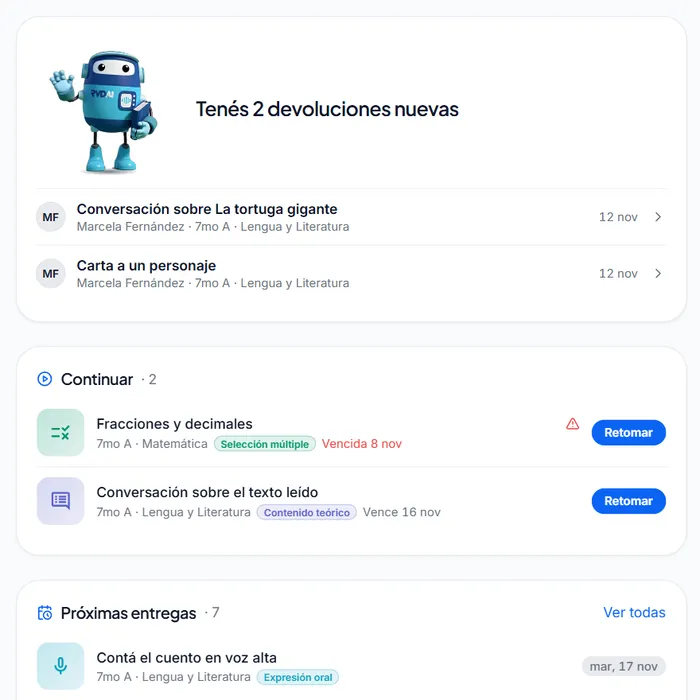
The first thing a student sees on signing in is what their teacher wrote.
When you publish a review, the student gets a notification and their home shows New feedback at the very top. Each review stays marked as new until they open it.
In My progress, My feedback gathers them all, newest first, with a summary of how each attempt went.
While the review is pending, the task reads Waiting for your teacher, and from there the student can ask you to review it.
New reviews head the student's home until they open them. Demo account. Feedback
Feedback a student can follow
The feedback opens with your message to the student, if you wrote one. Beside it, How it went goes over each objective: what the work showed and the word the school chose for that level.
From the review, the student reads your words and the analysis of each objective. Berni writes them no messages of its own. When the activity allows another attempt, the button to start it is on the same screen.
Levels describe the work. Report-card marks remain the school's official grades.
What Julia reads: her teacher's message and, beside it, the analysis of each objective. Demo account. Feedback
A suggestion for the next attempt
When you close the review you write your message to the student, which stays in the feedback for that attempt. If the student has attempts left, you can add a separate suggestion for the next one.
The student reads it in their feedback, above Try another attempt, next to the attempts they have left. They see it again in the task before starting that attempt, under the title Your teacher's suggestion for this attempt.
The suggestion stays in that assignment. Other activities, subjects or competencies do not show it.
Student tasks
Tasks ordered by what is left
The student's task list reads by what remains to be done and clearly confirms when something has been handed in.
What is left comes first, with each due date. Demo account. Grading
Grade faster, with better judgement
Berni proposes a level for each objective and you decide.
Berni leaves a reading of each hand-in and proposes a level for each objective, always marked as a proposal. You confirm or change the level. If you change it, you write why, and Berni uses that reason to draft the comment on that objective.
What is left to confirm is grouped by activity, and each reading appears next to its grounds. Before closing, you see exactly what the student will read.
What is left to confirm in Entrevista a Martín Fierro, student by student. Demo account. Teacher home
A home that tells you what to do first
The home screen opens with what is waiting for you and makes clear, for each pending item, who needs to act. Your classrooms appear in a carousel you swipe through on a phone.
If you have not assigned anything yet, Berni greets you and guides you step by step to your first activity.
What waits for grading and what the students owe, on the first screen. Demo account. Modules
Modules built from one request
Paste your plan or write what you need, and Berni proposes the whole module with every activity type. Then you adjust it in your own words.
Each activity says what it covers, and history topics bring a scene from the period that gives them context.
The written request, before Generate proposal. Demo account. In class
Share with a QR code and follow the class live
Each activity is shared with a QR code and a link you copy with one tap, ready to project in class.
The board shows who joined, who is working, who handed in and which objectives each student reached. It works on a phone, a computer and a projector.
You project the code while the class board stays behind it. Demo account. Activities
Fill in the blanks with a word bank
Fill-in-the-blanks activities can use a word bank with distractors. The student drags or taps a word to place it, and you enter the accepted answers as chips.
Worksheets add fill-in steps with a bank, and the matching exercise shows the student which pairs came out wrong.
The student taps a word in the bank to place it in the blank. Demo account. School leadership
A clearer home for school leaders
The school leader's home separates what calls for a decision from what is only there to watch, with the indicators gathered in one visual panel. Each school sees how its teachers use the platform from day one.
What needs a decision comes first, then what is only to look at. Demo account. Classrooms and tasks
Also in this version
Changes you will notice in everyday work.
- Live signals
- What shows live about a student reaches only the staff in charge of their classroom.
- Schools under contract
- No minor can enter a classroom of a school without a current contract.
- Hand-made rubrics
- When you generate with Berni a rubric you started yourself, your scale, your threshold and the cells you wrote are kept. Before publishing, the editor names the empty cells.
- Proposals on little evidence
- When a Berni proposal rests on very little of the work, grading flags it before you close.
- Surveys
- You can answer short surveys from the platform and tell us what you think.