
RVD.AI · Version 2.29.0
Math in RVD.AI: your students solve, Berni asks and you decide.
Your students answer with numbers, expressions and marks on the number line or the plane. With immediate feedback on, a student who gets it wrong reads which line of reasoning failed. A student who asks for the result gets a question back from Berni. And every answer key passes through your hands before it reaches the class.
WHAT'S INCLUDED
The changes in this update.
Quizzes
Six ways to answer in math
The student types the result, builds an expression or marks it on a figure, depending on what the question asks for.
Every quiz question now has an answer type. You choose it in the editor and the student gets the matching field: in primary school, a number keypad with a decimal comma and fractions; in secondary school, an equation keyboard with powers, roots and fractions.
The first time a student meets an expression, they practise with the keyboard before answering. That practice is not graded.
- Options to choose from
- The familiar question, now with formulas and figures in the question and in the options.
- A number
- Whole number, decimal, fraction or percentage, with the unit in view when the question asks for one.
- A word or short phrase
- Capitals and accents do not matter, and a spelling mistake is counted separately.
- An expression
- For secondary school: factor, simplify, expand. It is graded on its value and on the form you asked for.
- A point on the line
- The student taps the line or moves the mark with the arrow keys.
- Points or lines on the plane
- Marks coordinates, or two points that define a line, on the grid.
A third-year secondary student simplifies 3x + 2x with the equation keyboard. Demo account. Quizzes
Every correct way of writing a number counts
If the key is 0,5, then 1/2, ,5, 0.5 and 50 % count too. As the student types, the field shows how the platform reads it, so they know what they are sending before they send it.
When an answer can be read two ways, like 1.500 (fifteen hundred, or one and a half?), the platform leaves it to you. The student sees, in a neutral tone and with no cross or zero, that the answer is waiting for their teacher.
The verdict comes from a math engine, with rules you can see on every answer. AI plays no part in grading.
The key said 0,5 and the student wrote 1/2: it is correct, and the explanation appears beside it. Demo account. Number line and plane
Mark on the number line and the coordinate plane
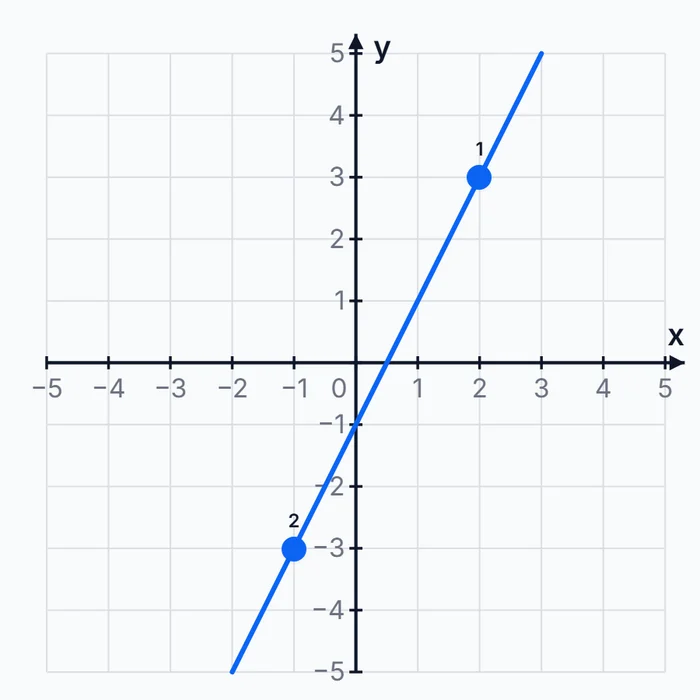
A question can ask the student to place a number on the line or to graph a function by marking two points. They tap the figure, drag the mark or move it with the arrow keys, and the line through the points is drawn as they go.
While they place it, the screen says which quadrant the mark is in, or which numbers it falls between. The exact value is for the student to find by reading the figure.
Graphing y = 2x − 1 by marking two points on the grid. Demo account. Feedback
When they get it wrong, they know why
With immediate feedback on, the student reads which line of reasoning failed as soon as they answer.
When you build the question you can write down the wrong answers you expect and the reasoning behind each one. If a student places 3/4 on the third mark of a line divided into eighths, they read “Counted three marks: took the eighths for quarters” and, below it, the explanation of the method.
That feedback appears only when you turn on Immediate feedback in the activity, and it arrives after each answer. It points to the step that failed, and the student goes back over their work before moving on to the next question.
Without immediate feedback, the student answers without seeing verdicts and, on handing in, gets their result by question type. The detail of each mistake, under the name you gave it, comes to you in tracking and in the report.
A fifth-grade student places 3/4 on the 3/8 mark and gets the feedback their teacher wrote. Demo account. Berni
Berni asks before answering
When the student asks for the result, Berni answers with a question.
In guided conversations, Berni follows the student's reasoning and leaves the work to them. In the conversation in the picture, the student asked for the slope to finish faster. Berni acknowledged what the student had already noticed and asked them to count how many units the line rises for each unit it moves across.
Berni can also draw. With Allow figures in chat turned on in the activity, Berni shows lines, planes and graphs when they help the student think. You decide which activities use them.
Beside the conversation the student sees how each objective is progressing, and the screen reminds them that AI can make mistakes.
A practice conversation in English. The student asks for the slope and Berni asks how much the line rises for each unit. Demo account. AI creation
AI proposes the questions and checks their keys
With Generate with AI you ask for, say, ten exercises on fractions and decimals for fifth grade. Each question arrives with its answer type, its key, the step-by-step solution and the calculation that gives the result.
Before you see it, each key is checked twice: against that calculation and against an independent solution. If the two disagree, the question is flagged and the quiz waits for you to confirm that key before it can be published.
In the editor, each key shows how the platform reads it and which ways of writing it are accepted. Before you publish, the editor reviews the quiz and tells you which question needs your attention.
The key shows how it will be read and which ways of writing it are accepted. Demo account. AI creation
Figures the platform draws
Any question can carry a figure: a number line, a plane, a graph, a fraction model or a geometric shape. The platform draws it from its data, so it looks sharp on a computer, on a phone and in the PDF.
Each figure carries a description for readers who cannot see it, written so it does not give away the answer, and it waits for your approval before it is published. If you change it later, it asks for approval again.
On a number line question you mark where the correct answer goes and where the mistakes you anticipated land.
The question's number line, with the correct position at 3/4 and the mark at 3/8 that anticipates a common mistake. Demo account. AI creation
Try the quiz as a student
With Try it as a pupil you answer your own quiz before the class does, in a tab separate from your classrooms. Alongside, you see what you have answered so far, how the platform read it and the verdict.
When you hand in, a summary shows the questions where your answer and your key disagreed. If you wrote a valid answer the key did not have, you add it from there.
The teacher's trial run: each answer with its reading and its verdict, and the question's explanation. Demo account. Tracking
Uncertain answers are decided once, for the whole class
Answers the key did not anticipate, or that can be read two ways, are gathered in Answers waiting for your decision, at the top of tracking. Each one appears only once, with the number of students who wrote it.
You accept it, mark it incorrect or choose the reading, and the decision grades all those students at once. An accepted answer is added to the key, and Undo sends those attempts back to waiting.
Names appear only when you open the row, and only the classroom's teachers see the tray.
Two students wrote 1.500 and one wrote 5/8: one decision covers each case. Demo account. Report
A report that reads each question type
The report counts each question type separately: options, numbers, words, expressions, number line and plane. Each type shows something different about what the class knows, which is why no percentage mixes them.
On each question you see the most repeated wrong answers under the name you gave them, and on the number line, where each student marked relative to the key. The PDF prints the formulas and the figures.
While answers are waiting for your decision, the student's result shows as Provisional.
Each question type with its count and what it shows. Demo account. Quizzes
Answers survive a bad connection
If the internet drops, answers stay saved on the device and the student carries on. They are sent on their own when the connection returns, or with Send now. Nobody has to type the same thing twice.
Classrooms and assignments
Also in this version
Changes that help with everyday work, in any subject.
- Deadlines per student
- With Excuse pupil or Give more time you settle one student's case, and the assignment stays the same for the rest of the class.
- Automatic closing
- An assignment with a due date closes on its own twenty minutes after the deadline. Whatever was handed in waits for you to grade it.
- Grading with a rubric
- You go through the objectives step by step, and the decision on each criterion is yours.
- New subjects
- If the subject you are looking for is not there yet, you add it from the classroom form.