
RVD.AI · Version 2.27.0
Quizzes with images and an easier review.
Add an image to each question, reorder the quiz by dragging, and go through the work in your earlier classrooms without losing the context.
WHAT'S INCLUDED
The changes in this update.
Quizzes
Add images to questions
A map to interpret, a chart to compare or a photo to observe.
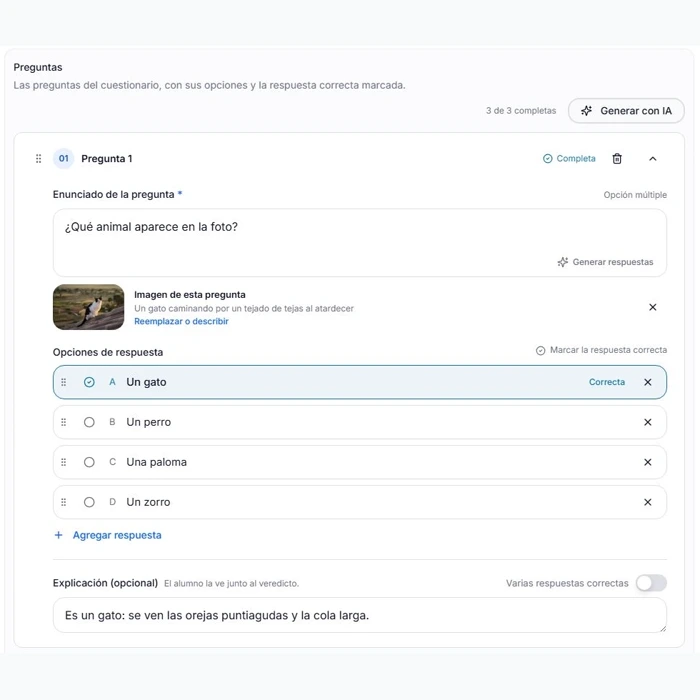
You can now add an image to each quiz question. Pick it from your library or upload it from your computer, write a description, and build the instructions around what you want the student to notice.
In the editor the image sits next to the question, with the options and the correct answer in view. You can replace it or adjust its description from the same question: use a photo to recognize a landscape, for example, or a map to locate a country.
The whole question in the editor: image, options, correct answer and explanation. Demo account. Quizzes
Reorder the questions and see them as the student will
Drag the questions to change their order, and do the same with the answer options. If you move the correct option, its mark moves with it. The editor shows how many questions are complete and what the others are missing.
When taking part, the student sees the question, the image and the answer options on the same screen. On a computer the image and the answers sit side by side; on a phone they stack one below the other.
The image is shown whole, without cropping. With Enlarge image, the student can study the details and then go back to the question to choose an answer.
When you review their work, the image they saw while answering is there for you. You can return to the same visual prompt to talk about their choice.
The same question from the editor, now in the participation view: the whole image, the options and the button to answer. Demo account. Classroom archive
Your version 1 classrooms are in Archive
As a teacher, you can look up your classrooms and the participation records from version 1 in the new platform. Open Archive in the side menu to find that history.
Open a classroom to review its activities and its students' work. The archive is read-only: it keeps the information from the previous platform while you carry on working in your current classrooms.
Choose Archive in the side menu and open Classrooms to find your version 1 history. Your account
Find your settings in My account
We have also brought access to your personal settings into one place. Open the user menu and choose My account to find them.
If you used to get there from the side menu, use this option in the user menu instead.