
RVD.AI · Teacher guide
Start using the new RVD.AI
If you come from the previous platform, sign in with your usual email. Your classrooms with students are already there; review and complete your modules and activities before you publish and assign them.
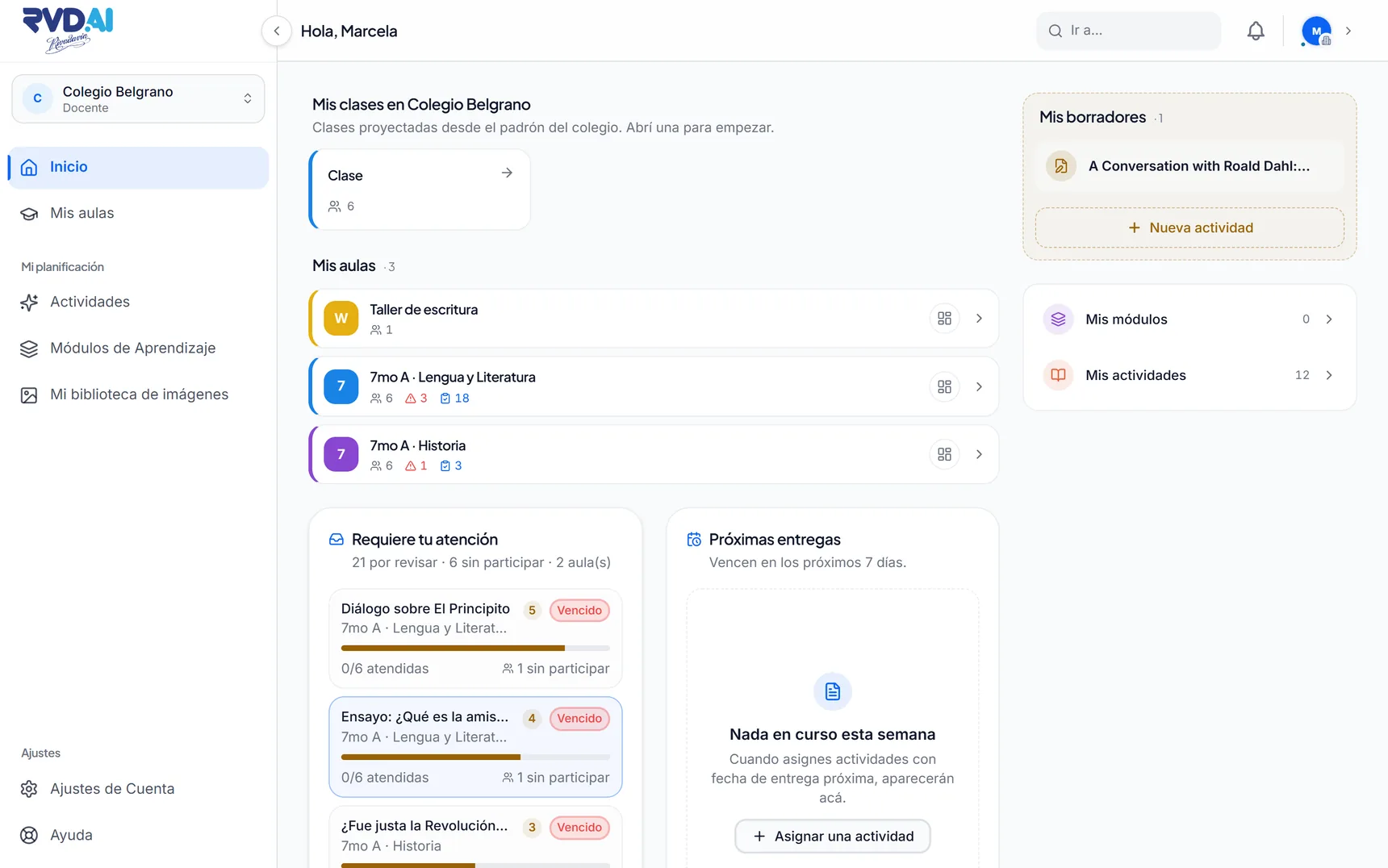
What stays, and what do you need to do in the new RVD.AI Classroom?
Your classrooms, students, modules and activities are already there
You will find the classrooms that already had students, with their members, your modules and your activities.
Review and complete the drafts before assigning them
Modules and activities that need review carry the “Migrated · pending adjustment” mark. Open them, fill in what is missing and publish them before you assign them to your students.
TO KEEP WORKING
Get your classrooms and activities ready before assigning them
If you come from the previous platform, these steps help you sign in to the new RVD.AI, see what is already there and complete your activities so you can assign them to your students again.
Sign-in
Sign in with the email you already used
Sign in with the email from the previous platform. If you signed in with Google, choose that button. If you used a password, create a new one from ¿Olvidaste tu contraseña? (Forgot your password?) and follow the link you receive by email.
The first time you sign in, accept the terms and the privacy policy.
My classrooms
Check your classrooms and share the new code
In My Classrooms, check that the classrooms that already had students are there, with their members. The school keeps one student roster shared by all its classrooms.
The old code was replaced. Copy the new five-character code from the classroom bar, or project it on the board for the live class.
My library
Review the drafts before publishing them
Open each activity in the editor. If you cannot use Publish or Preview, read the Still missing: notice and complete what it lists. Check these in particular:
- Audience
- Choose the level and grade the activity is meant for.
- Debates
- Fill in the topic and the positions. You can let the student choose their own.
- Multiple Choice
- If questions are missing, add at least one with two options and mark the correct one.
Publish and assign
Publish the activities and assign them to your classroom
Press Publish when you finish reviewing the content. Then assign the module to your classroom and set the due date for each activity.
To edit a published activity, make your changes and press Publish changes. Students who already started keep the version they were working on. You can also duplicate it to create another activity.
WHEN YOU ARE READY
Get to know the tools in the new RVD.AI
You will also find tools to assess, support your students and organize your daily work.
Objectives and rubric
Use a rubric to assess by criteria
The rubric is optional. Use it to assess by criteria and to see results by objective. Auto-graded activities, such as Multiple Choice, do not use it.
In Pedagogical objectives, press Generate with AI. Review the proposed objectives and rubric, adjust them and save. If the button is inactive, fill in the topic, the description or the instructions.
Your day to day
Use the tools that go with each activity
These tools let you follow your students' work, step in when they need it and review the results of each activity.
- Assignment dashboard
- Open Tracking, Classroom, Correction or Report to see submissions, support the work and review results.
- Live class
- Share the classroom code. Students can take part even if they do not have an account yet.
- Berni
- Berni supports students with questions and hints according to the purpose you set.
- School library
- The administrator can add your published modules to the School library so other teachers can use them.
- Your AI week
- Check Your AI week in your profile menu. What you used seven days ago is available again today. Trying an activity in Preview also uses your allowance.
Help
Find help when you need it
Open Help from the RVD.AI menu to see how to use each tool.