
RVD.AI · Administrator guide
Get your school ready in the new RVD.AI
The new administrator profile lets you organize the school's structure, review teachers, students and classrooms, share content and hand out the AI allowance. Start by activating your profile and getting the school ready.
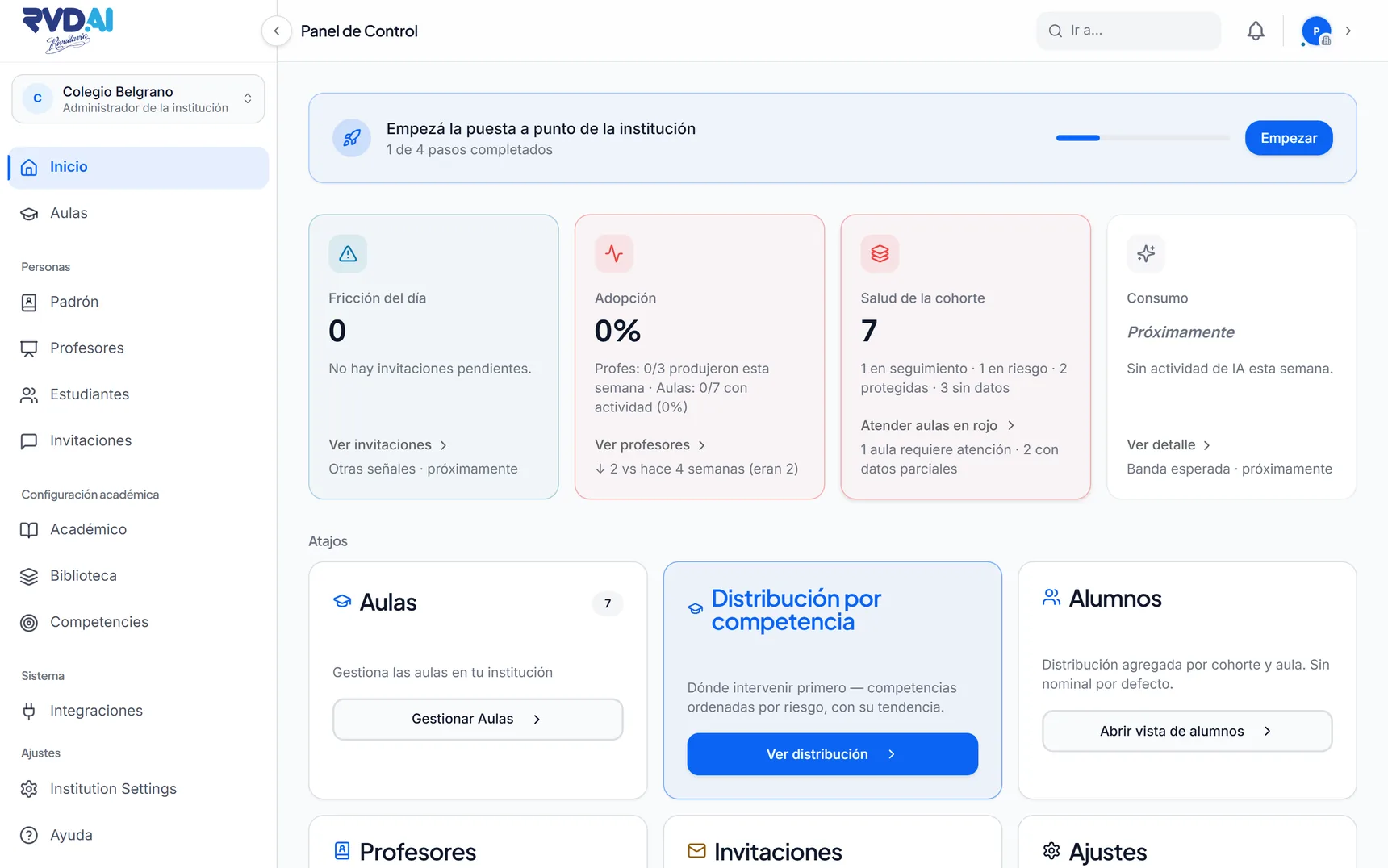
What stays, and what do you need to do in the new RVD.AI Classroom?
Your teachers, students and classrooms are already there
Teachers and students are already registered, along with the classrooms that already had students. Modules and activities are in each teacher's library, as drafts to review.
A dashboard to run the school
Besides inviting teachers, you can now set up the structure, keep the student roster, share modules and hand out the AI allowance.
TO GET THE SCHOOL GOING
Activate your profile and review the school's structure
These steps help you turn on the new administrator features and get the school ready so teachers and students can work in RVD.AI.
Your profile
Accept your invitation and activate the profile
To activate the administrator profile you need an invitation from the RVD.AI team or from another administrator at the school. When you accept it, you are asked for your date of birth because the role requires you to be of legal age. If you did not receive the invitation, write to us at info@rvd.ai.
The first time you sign in, complete the Legal framework and privacy step to reach the school dashboard.
Academic
Set up the school's academic structure
In Academics, open Structure and choose the jurisdiction, the levels and the years the school teaches. Press Save structure. The official subjects load automatically.
In Roster, choose New division and link its letter to the matching grade, for example 7th grade A. You can also link it to several grades.
Students
Review students and divisions
The Roster is the school's register of students. Students who were already registered appear there: check that each one is in their division and add anyone missing. The school registers each student once; the classrooms linked to their division include them automatically.
Registering someone does not send an invitation or give them access. If No account yet appears, they can sign in with their school account or receive an invitation from you.
Teachers
Check which teachers have access
In Teachers, see who has an account and who needs an invitation. You can invite one at a time or paste a list. If an invitation expired, resend it; if it no longer applies, revoke it.
WHEN THE SCHOOL IS READY
Organize content and AI usage
These tools let you look up the earlier history, share content between teachers and organize the school's AI allowance.
Archive
Look up the earlier history
Students' answers and participation on the previous platform can be looked up in Archive. That history is read-only and is not copied into the new classrooms.
From Archive you can bring back a classroom that did not carry over: it is created in RVD.AI with its members, and its earlier history stays in Archive.
Library
Share modules ready to use
Choose which published modules go into the School library so other teachers can use them in their classrooms. The dashboard also shows the carried-over drafts that still need review.
AI usage
Organize the school's AI allowance
In Consumption, check how much AI the school and each teacher have used. Use Give more or Change share to adjust how much each one can use. This hands out the school's existing allowance.
The allowance counts the last seven days: what was used seven days ago is available again today. There is no fixed reset day.