
RVD.AI · Version 2.18.0
The AI reads your material.
The rubric, the objectives and the evaluator draw on what you uploaded, PDF and Word files reach the model whole, and accounts created with Google can set a password.
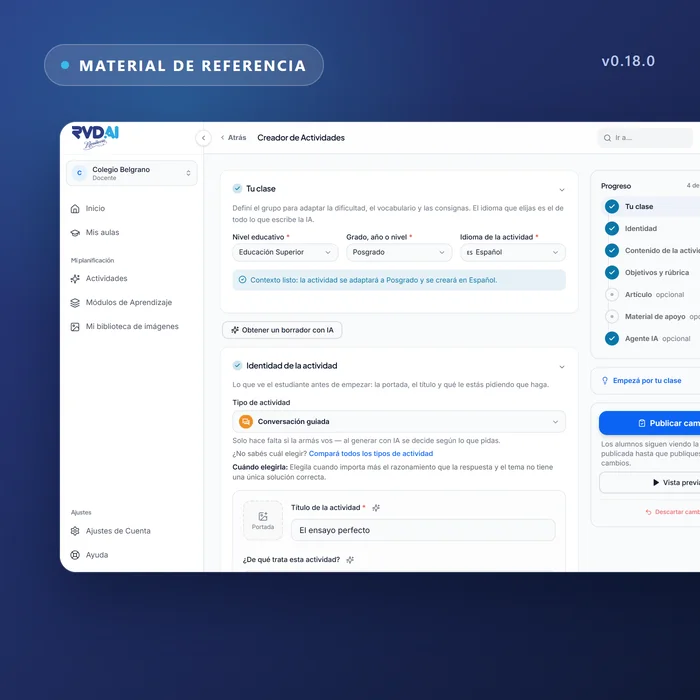
WHAT'S INCLUDED
The changes in this update.
Reference material
Rubric and objectives grounded in your material
What you upload is what the AI uses to write and to grade.
When you generate an activity with an attached document, the rubric and the objectives are written from that material. The instructions can name it, and the evaluator reads it when assessing each student's conversation.
Reference material
PDF and Word, read in full
An attached PDF or Word document reaches the model as a file, with its structure and its pages. What you see as material is what the AI receives, during creation and in the classroom.
Account settings
A password for accounts created with Google
Anyone who signed in with Google can request a link to set a password from Security, and gets an email when they create or change it.
Account settings
Each settings section is offered to whoever needs it
Profile, security, AI usage, notifications, accessibility and language: the list depends on the role of the person looking. Becoming a teacher runs as a step-by-step dialog, and the section stays as the way back.
Modules
An empty module offers the work
A module with no activities shows what to do next, instead of a tracking screen with no data. Each module in the classroom shows how many of its activities are already active for the class, with figures that now match what was assigned.
Review dashboard
Grading lives on the dashboard
The way into the rubric grid is in the assignment bar: grading is one view of the dashboard, next to tracking.